How to Play GTA 6 on PC Safely: Chiaki-ng, PS Remote Play & Xbox Guide
Because no native Windows version of Grand Theft Auto VI exists yet, streaming an owned PS5 or Xbox Series X|S over wired Gigabit LAN is the only safe, legal way to play GTA 6 on a PC monitor right now. Follow this verified setup guide for 1080p60 HDR gameplay with sub-12 ms latency.
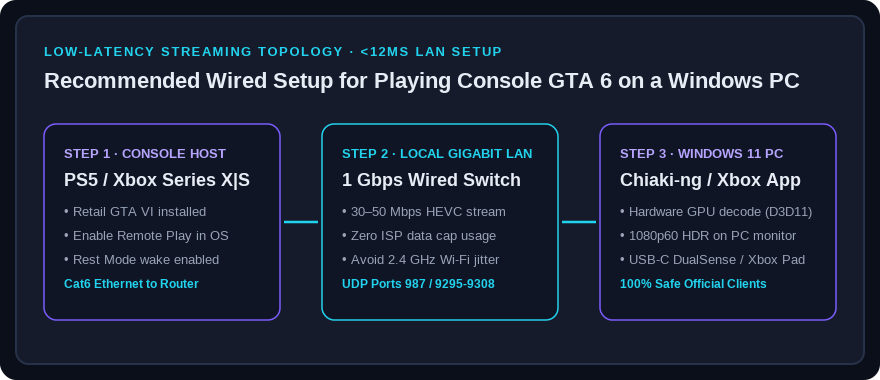
Want to know how to play GTA 6 on PC right now without risking your accounts to fake installers? Because Grand Theft Auto VI launched exclusively on PlayStation 5 and Xbox Series X|S on November 19, 2026—and neither Rockstar Games nor community modders have a playable native Windows build—the only genuine, working, malware-free method is streaming an owned PS5 or Xbox Series X|S console to your Windows 10/11 desktop.
Done over wired Gigabit Ethernet or an HDMI 2.1 capture card, console-to-PC streaming lets you sit at your desk, use your PC audio interface and Discord setup, and play Grand Theft Auto VI on your primary monitor with sub-12 ms local latency.
Compare the 4 Legitimate Ways to Play Console GTA 6 on a PC Monitor
| Setup Method | Console Needed | Max Stream Spec | Input Lag (Wired LAN) | Official / Safe Download Source |
|---|---|---|---|---|
| Chiaki-ng (Recommended for PS5) | PS5 or PS5 Pro | 1080p · 60 FPS · HEVC HDR (up to 50+ Mbps) | ~8–12 ms | github.com/streetpea/chiaki-ng/releases |
| Sony PS Remote Play | PS5 or PS5 Pro | 1080p · 60 FPS · HDR | ~12–16 ms | remoteplay.dl.playstation.net |
| Microsoft Xbox App Remote Play | Xbox Series X or S | 1080p · 60 FPS | ~10–15 ms | Pre-installed on Windows 11 / xbox.com |
| HDMI 2.1 USB Capture Pass-Through | PS5 or Xbox Series X/S | Up to 4K60 / 1440p60 uncompressed | ~2–5 ms (near-native) | OBS Studio (obsproject.com) + capture card |
Method 1: PlayStation 5 to Windows PC via Chiaki-ng (Best Image Quality)
Sony's official Remote Play app caps bitrate aggressively, which can soften dense Vice City foliage and neon reflections on a sharp 1440p or 4K PC monitor. Chiaki-ng is a community-audited open-source Remote Play client that unlocks custom HEVC bitrates and hardware GPU decoding.
- Enable Remote Play on Your PS5: On your PlayStation 5, open Settings > System > Remote Play and toggle Enable Remote Play ON. Under Settings > System > Power Saving > Features Available in Rest Mode, enable Stay Connected to the Internet and Enable Turning On PS5 from Network.
- Wire Both Devices with Ethernet: Plug both your PS5 and your Windows PC into the same Gigabit router/switch using Cat5e or Cat6 Ethernet cables. Avoid 2.4 GHz Wi-Fi completely.
- Download Chiaki-ng from the Official Release Page: Visit
https://github.com/streetpea/chiaki-ng/releasesand download the signed Windows x64 installer or portable.zip. Never download "custom GTA 6 forks" of Chiaki—check our GTA 6 PC GitHub safety guide for why. - Pair Your Console: Click Register Console in Chiaki-ng, sign in via Sony PSN OAuth (or use local PIN registration from PS5 Settings > System > Remote Play > Link Device), and enter the 8-digit pairing code within 300 seconds.
- Dial In Optimal GTA 6 Settings in Chiaki-ng:
- Resolution:
1080p(PS5 Remote Play hardware encoder max output) - FPS:
60 FPS - Codec:
H.265 (HEVC)orH.265 HDR(if your Windows monitor supports HDR10) - Bitrate:
35000to50000kbps on wired Gigabit LAN - Hardware Decode:
d3d11va(uses less than 5% of any modern NVIDIA, AMD, or Intel GPU)
- Resolution:
- Connect Your DualSense via USB-C: Plug your DualSense controller directly into your PC over USB-C to retain full adaptive trigger resistance and haptic feedback while driving across Leonida.
Method 2: Xbox Series X|S to Windows 11 via Official Xbox App
If your retail copy of Grand Theft Auto VI is on Xbox Series X or Series S, you do not need any third-party download at all:
- Turn On Remote Features on Xbox: Press the Xbox button on your controller, navigate to Profile & system > Settings > Devices & connections > Remote features, check Enable remote features, and set power mode to Sleep so your PC can wake the console remotely.
- Launch the Windows Xbox App: Open the built-in Xbox app on Windows 10 or Windows 11 and sign in with the exact same Microsoft account linked to your console.
- Start Console Streaming: Click the Consoles icon next to your profile picture in the top-left bar, select your Xbox Series X|S, and click Remote Play. Note: Grand Theft Auto VI is not available on Xbox Cloud Gaming (xCloud) without a console—this streams directly from your physical Xbox over your home LAN.
Why "GTA 6 Cloud Play" Websites Asking for Win+R Are Malware
While researching how to play GTA 6 on PC, you may encounter slick websites claiming to stream GTA 6 in Chrome or Edge without owning a console. Security researchers at Bitdefender exposed these sites as ClickFix social engineering traps: they pop up a fake "human verification" or "WebGPU codec fix" dialog instructing you to press Win + R, press Ctrl + V, and hit Enter.
Doing so executes a hidden PowerShell command that silently installs info-stealing malware onto your PC. Never paste clipboard text into Windows Run or PowerShell. You can double-check any tool or website on our GTA 6 PC Port live verifier, check when Rockstar may ship a native build on our GTA 6 PC release date page, or benchmark your PC on our GTA 6 PC system requirements tool.
PC Player Reports & Verification Notes
Spotted a new GitHub recompilation fork, tested Chiaki-ng latency on your PC rig, or flagged a fake installer? Share plain-text notes below (links are blocked for malware safety).
No reports posted on this page yet. Be the first PC player to share your setup or ask a question above.